
Work in gallery view
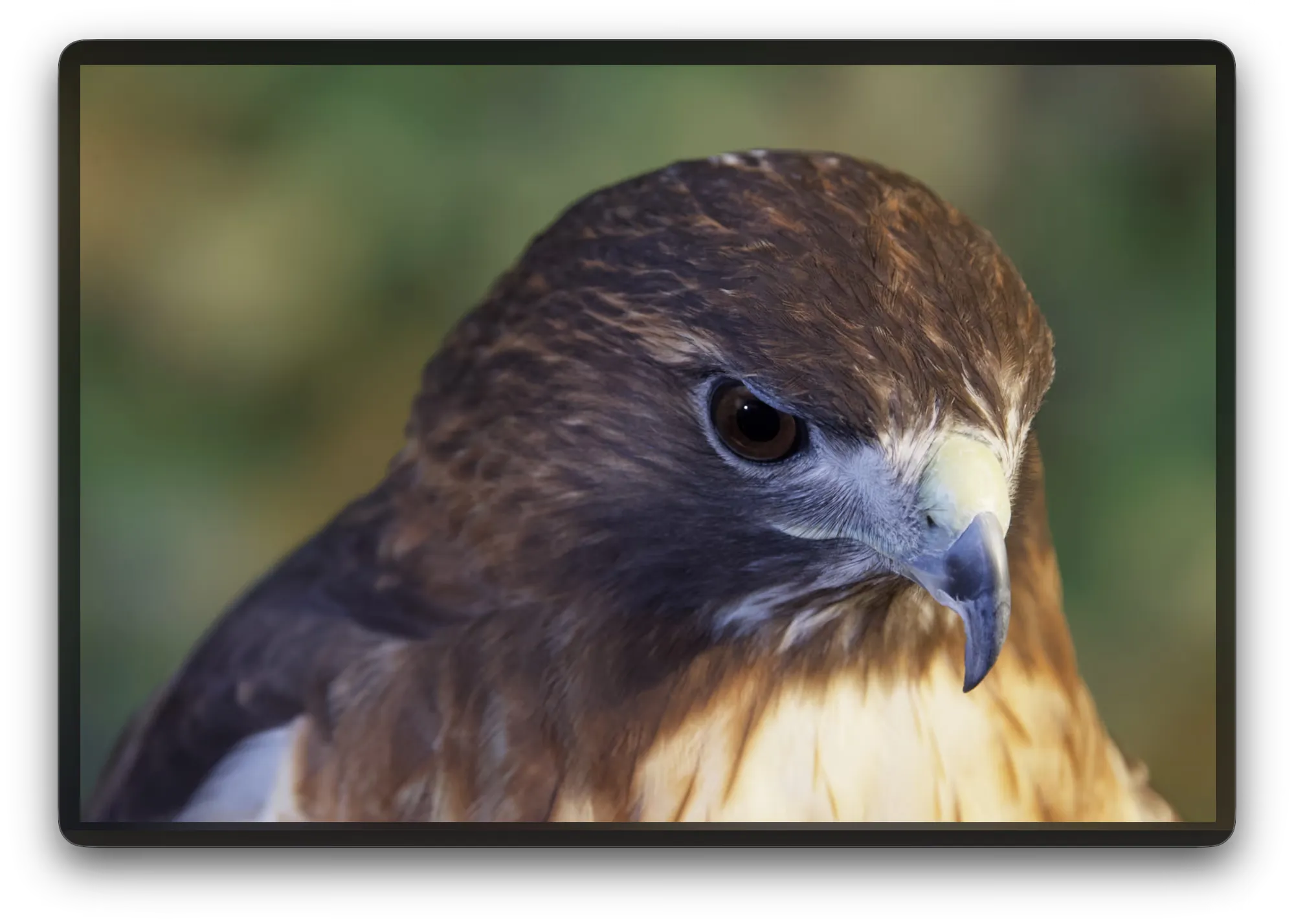
Gallery view gives the whole window to the photo. The controls go away and the keyboard drives everything. Use it to remove distractions or do quick passes through an entire shoot. Gallery view works best when you know the keyboard shortcuts.
Enter and leave
Section titled “Enter and leave”Press Space to enter gallery view. Press Space again to bring the controls back. Esc also leaves gallery view.
Esc leaves one thing at a time. If the ask bar is open, the first Esc closes the bar and the second leaves gallery view.
Step through the shoot
Section titled “Step through the shoot”Press the right arrow for the next photo and the left arrow for the previous one. L and H do the same.
Rate and flag as you go
Section titled “Rate and flag as you go”The marks work in gallery view, so a cull needs no other window.
- Press 1 to 5 to rate the photo.
- Press 0 to clear the rating.
- Press P to accept the photo, and X to reject it.
- Press U to remove the mark.
Prompt the assistant from gallery view
Section titled “Prompt the assistant from gallery view”Press / to open the ask bar at the foot of the window. Write the request, then press Return to send it. The photo stays on screen while the assistant works. A short form is enough, and one request can carry several changes.
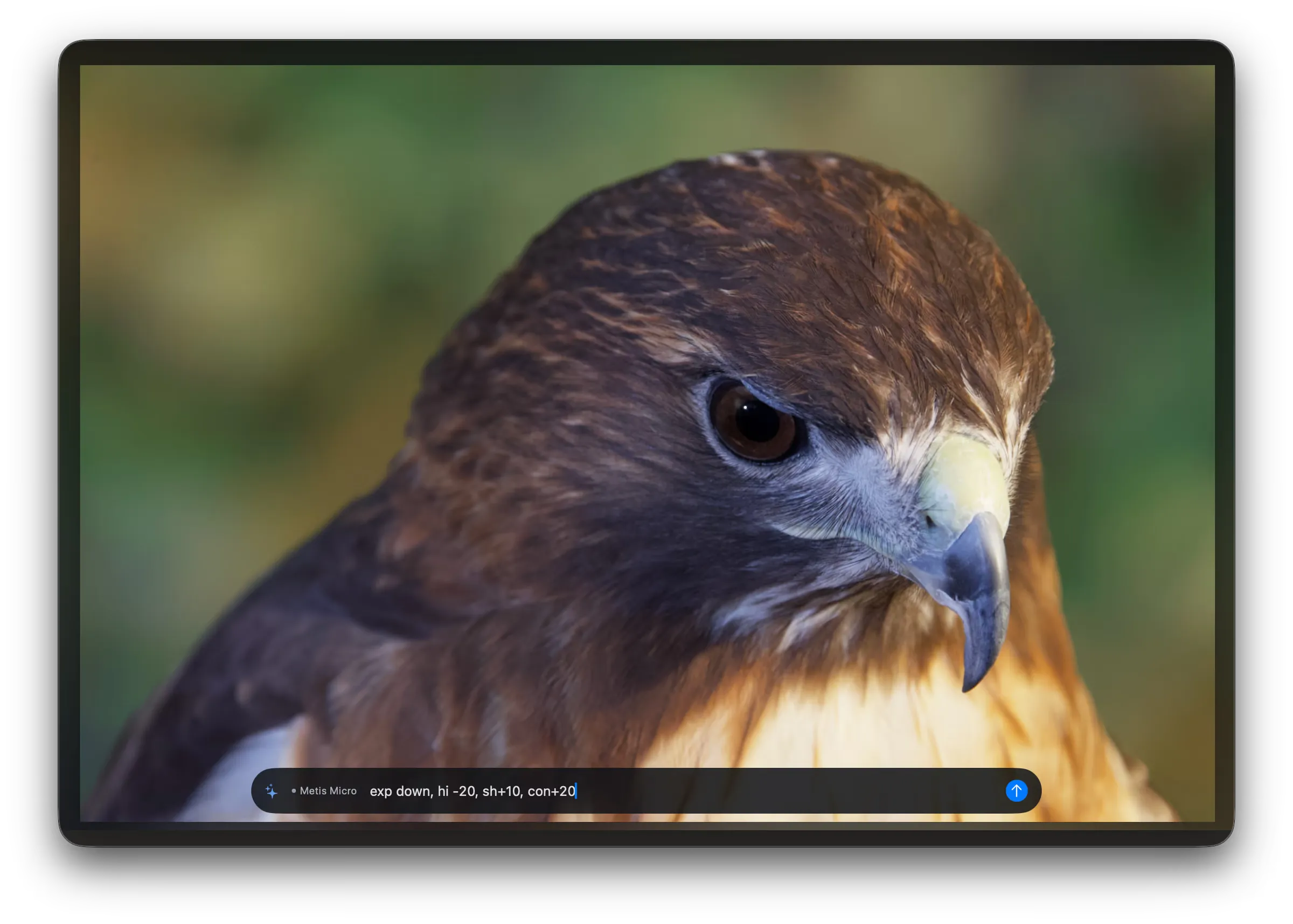
- The bar names the model it runs, for example “Metis Micro”.
- Gallery view holds no chat history and no dialog. You see the photo change, and nothing else.
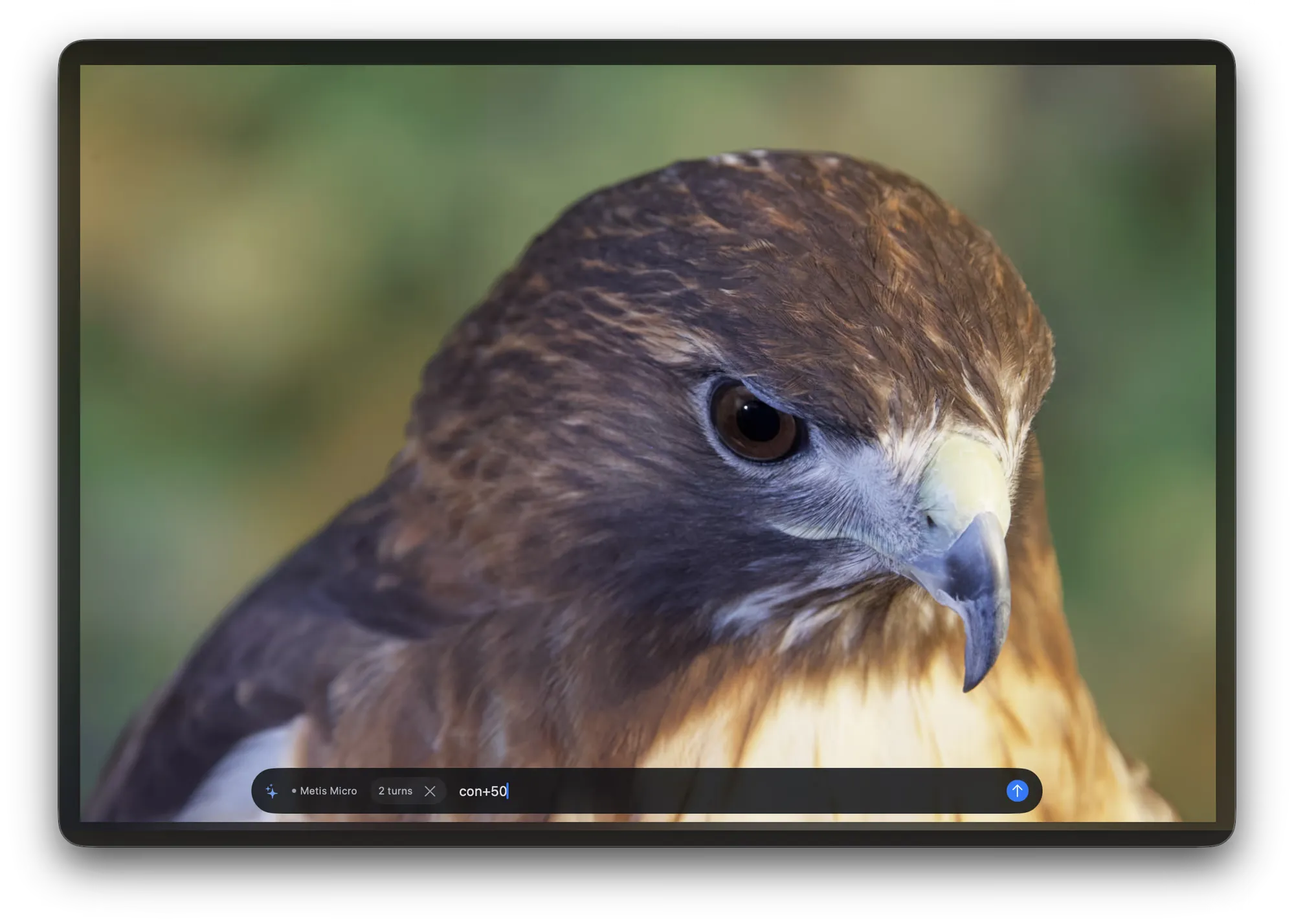
- The bar counts the turns in the chat.
- To start a new chat, press Backspace twice, or click the cross beside the count.
- The ask bar cannot change the model. To reach the assistant settings, leave gallery view.
- Press Esc to close the ask bar. Press Esc again to leave gallery view.
Compare two states
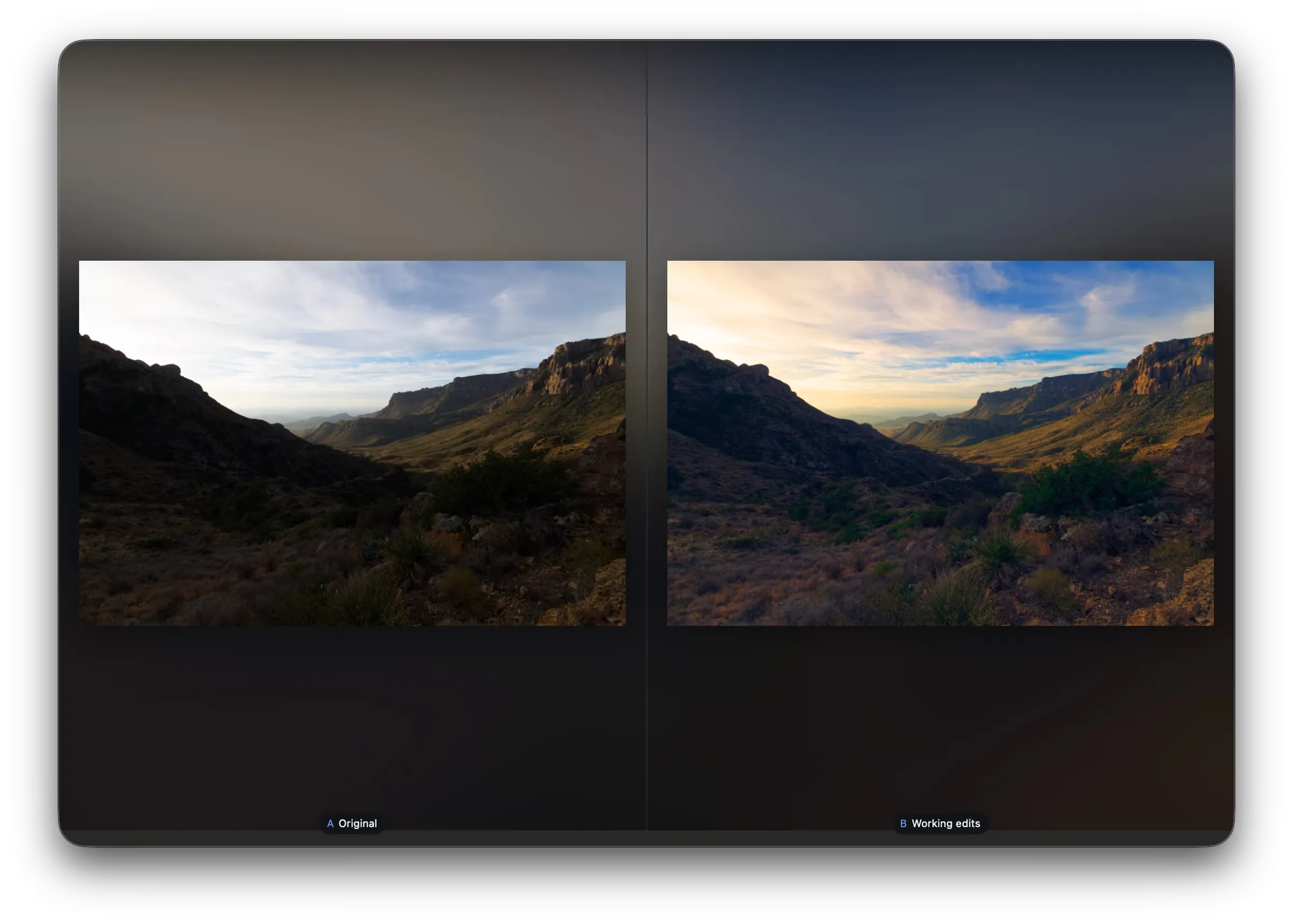
Section titled “Compare two states”Gallery view compares the current edits with the original. To compare against another snapshot, leave gallery view. See Save and restore an edit.
Press Y to set the two states beside each other. Each one keeps its own frame, and a label names it. A is on the left and B is on the right.
Press ⇧Y to set the two states in one frame. A divider runs down the photo, with A on one side of it and B on the other. Drag the divider to move it.
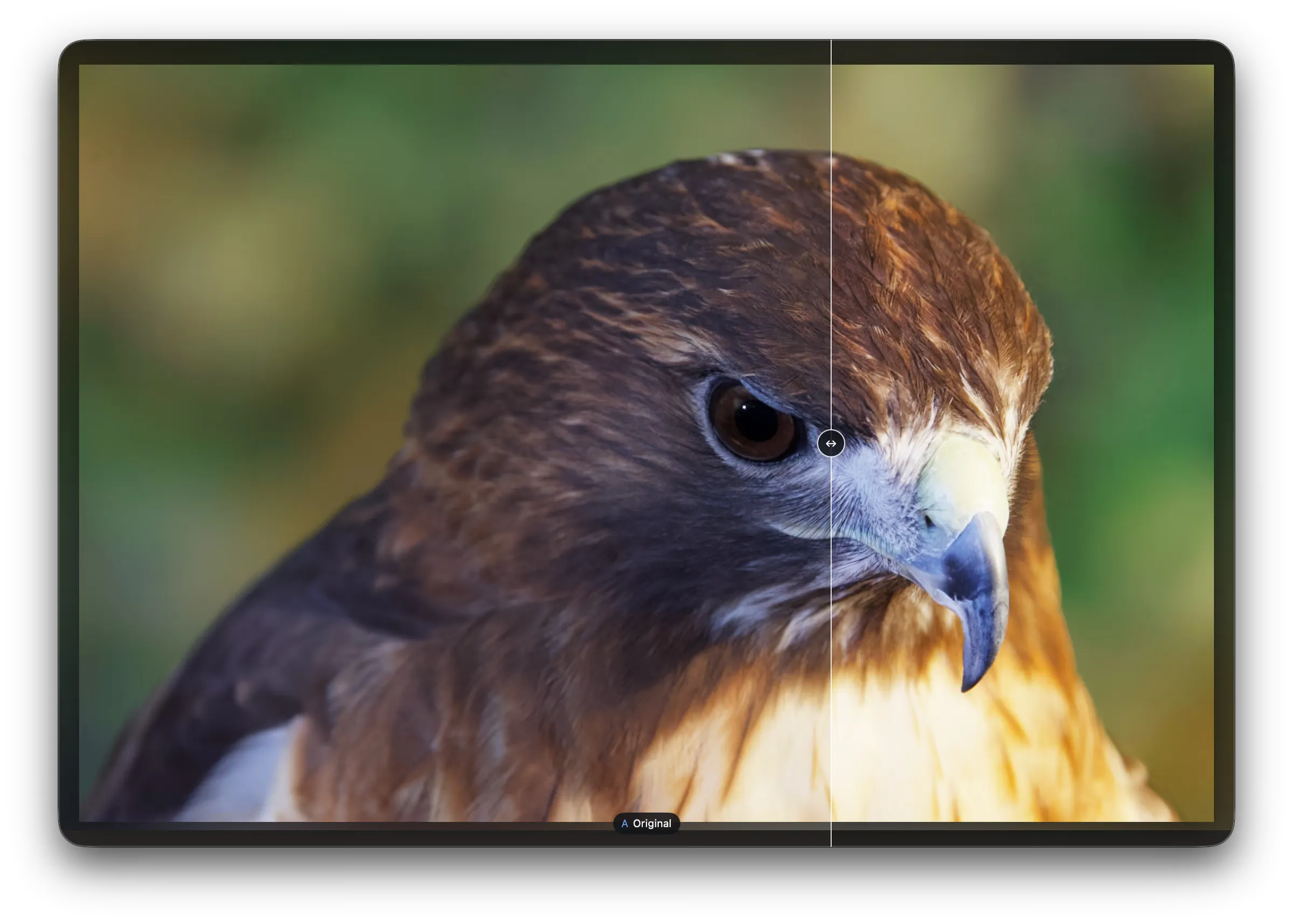
Press the same key again to end the comparison.