
Prompt the assistant
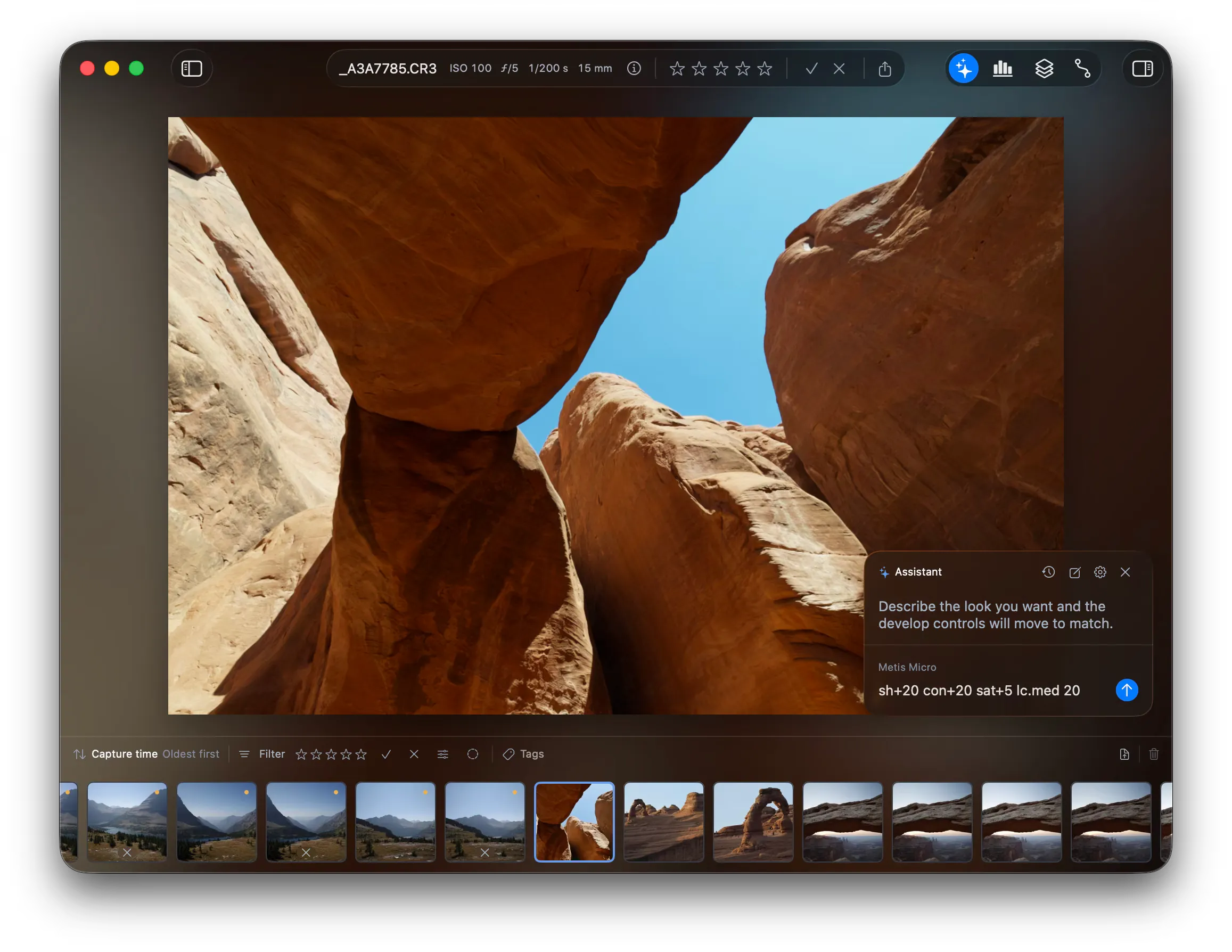
The assistant moves the develop controls for you. Describe the look you want, or write the exact values, and the assistant sets them on the photo.
The assistant needs a model first. See Set up the assistant.
Open the assistant
Section titled “Open the assistant”Click the sparkles button in the pane bar, or press /. The pane opens over the photo, in the bottom right corner. Drag the header to move it. To close the pane, click the cross in the header.
The model name is above the field. Make sure you use the best model for the task. See Which model to use. To open the assistant settings, click the gear icon in the header.
Send a request
Section titled “Send a request”- Write the request in the field.
- Press Return to send it. To write a second line, press ⇧Return.
- To give the keyboard back to the app, press Esc.
Each request acts on one photo, the photo on the canvas. The conversation crosses photos, so a later request can go to another photo. See Work on more than one photo.
Write the request the way you would say it out loud. For example:
- “lift the shadows”
- “recover the sky”
- “make it look shot on portra 400”
- “give it a cold morning feel”
- “what would you do with this one”
The result of a prompt depends heavily on the model in use. See Which model to use for the choices.
Give an exact command
Section titled “Give an exact command”The assistant also takes the control names and the numbers. Use this when you know the value you want.
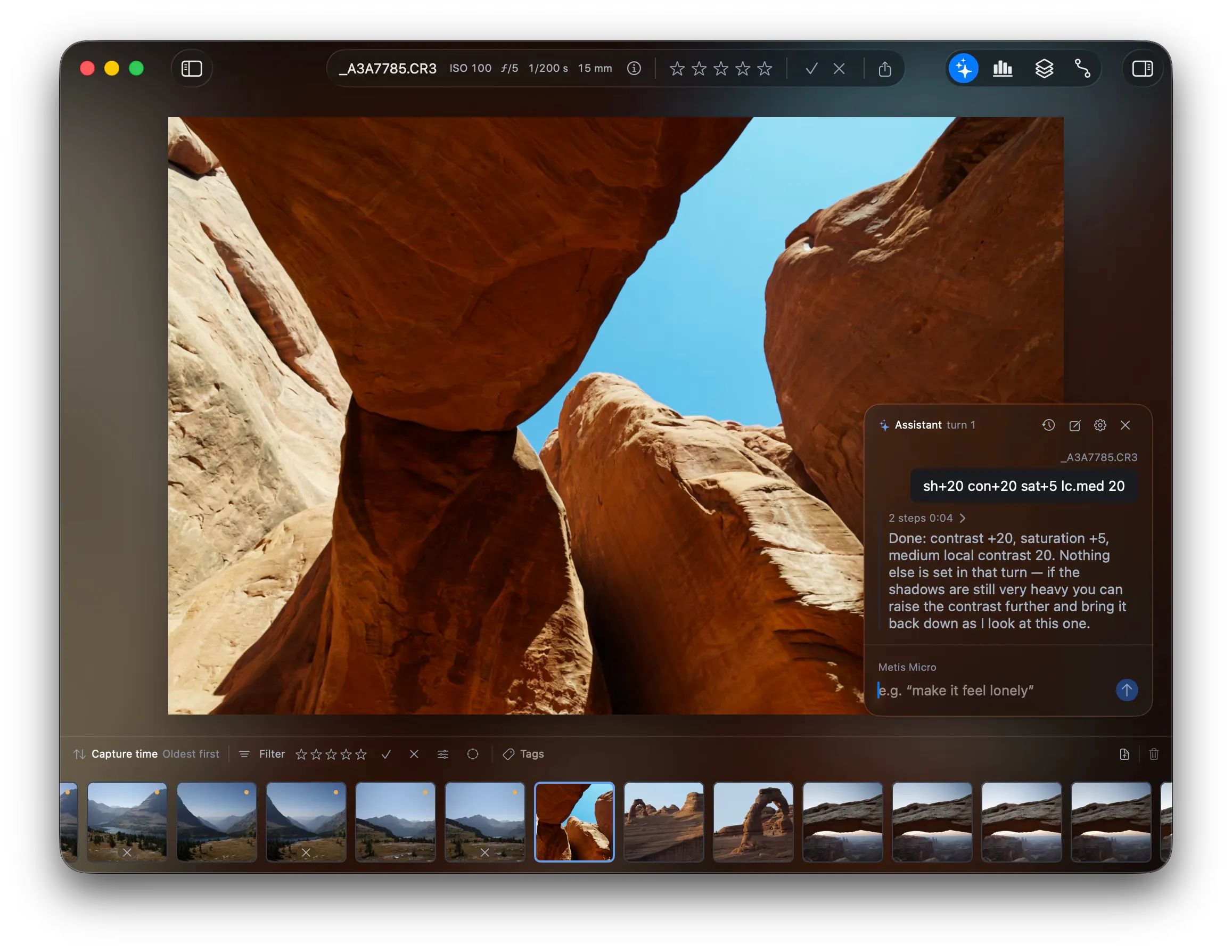
The request sh+20 con+20 sat+5 lc.med 20 moves four controls in one turn. For
the name of each control, see
Control keys and ranges.
Ask for a style
Section titled “Ask for a style”A capable model answers a request that names a look rather than a control. Metis Large is the strongest of the local models here. See Local Metis models.
For a request like this one, turn on Reason before answering in the Assistant tab of the settings. The model thinks before it acts, so the answer is slower.
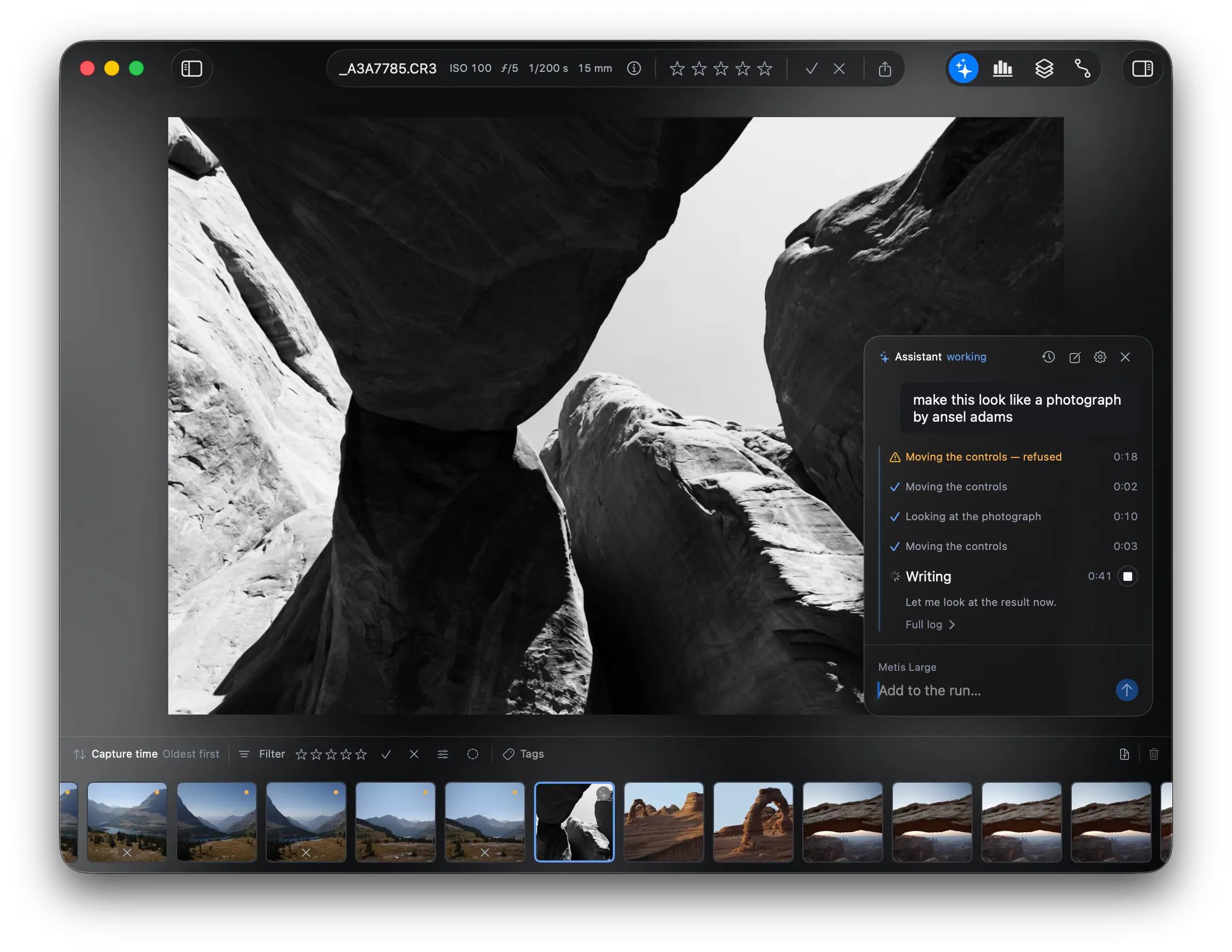
A turn like this takes several steps. The assistant moves the controls, looks at the result, then moves them again. Expect a few rounds to reach the look you want.
The assistant edits the same controls you do. When the turn ends, prompt the assistant for another edit, or take control and adjust the controls by hand. Before you prompt the assistant, save a snapshot. See Save and restore an edit.
Ask a follow-up
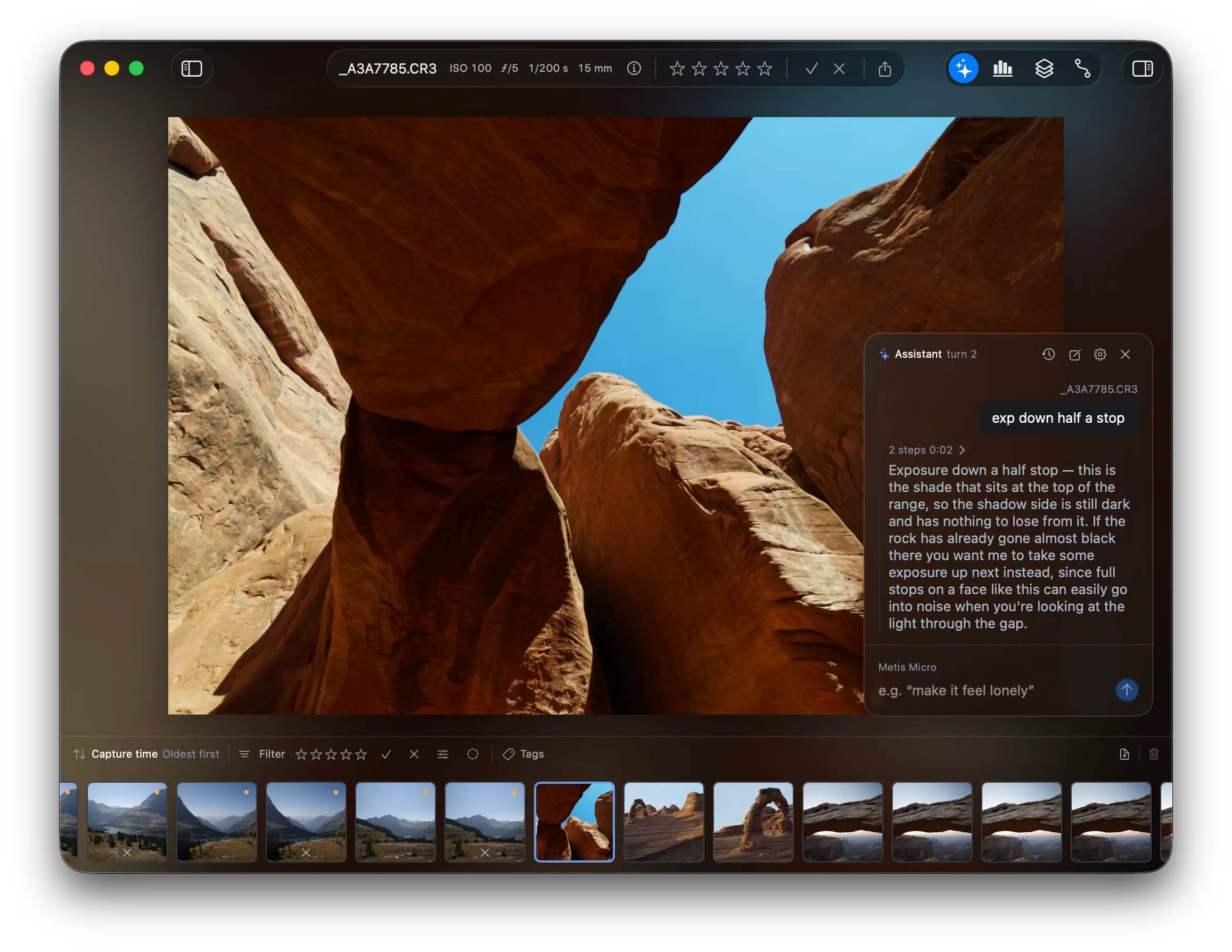
Section titled “Ask a follow-up”The conversation stays open, so the assistant reads what you said before. Ask for the next change in plain words.
Work on more than one photo
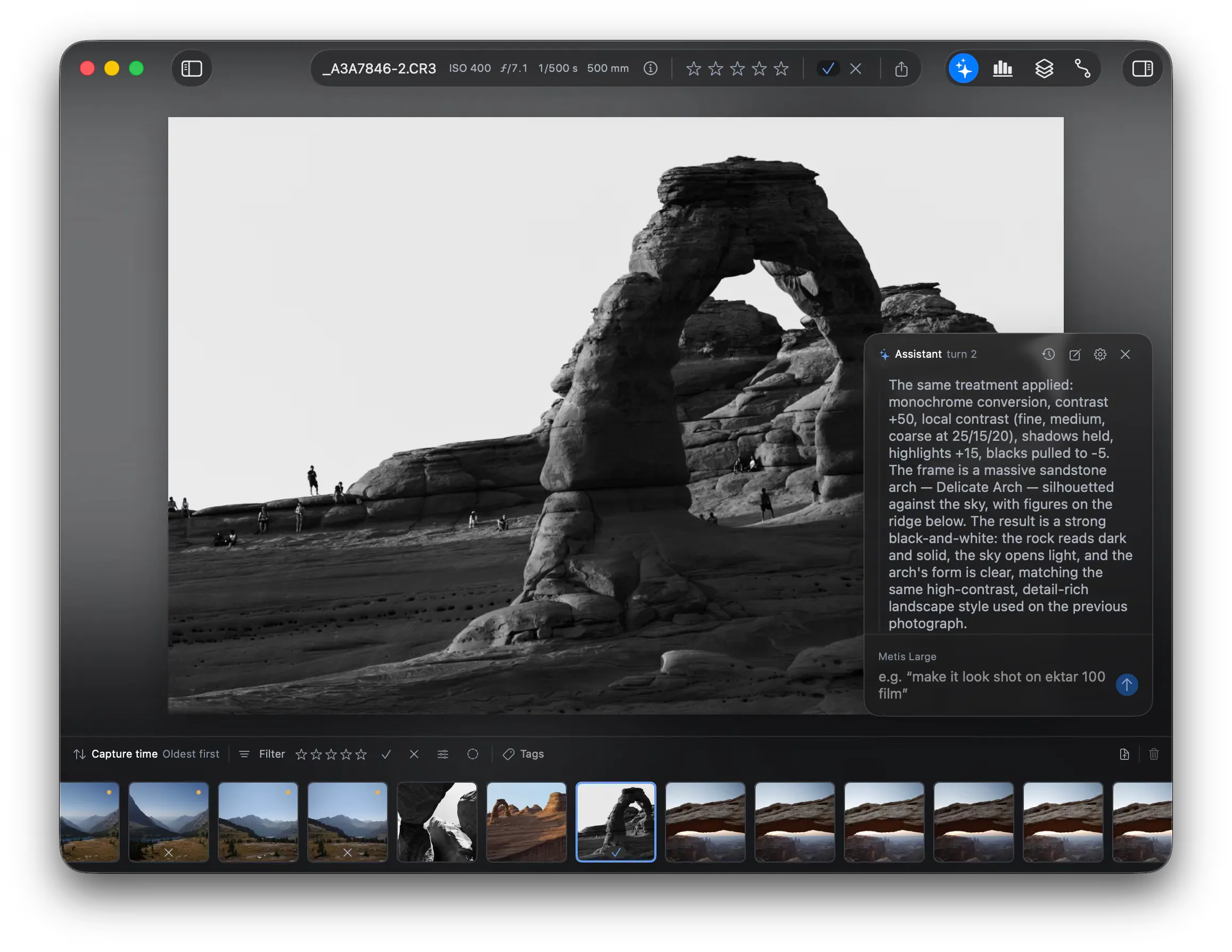
Section titled “Work on more than one photo”The conversation stays open when you step to another photo, so the assistant can repeat its work there. Go to the photo, then ask for the same treatment.
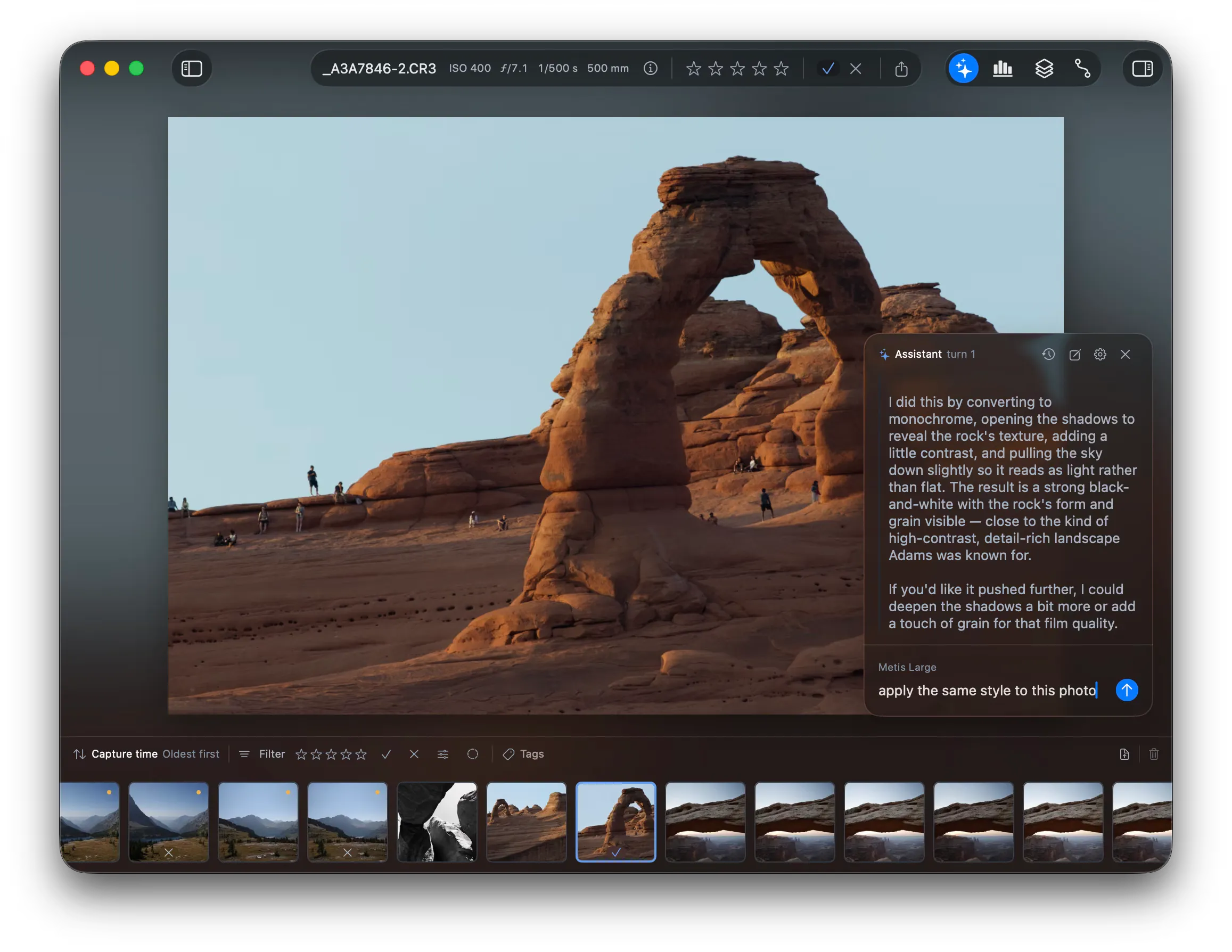
In this example, the request is “apply the same style to this photo”. The request is part of the open conversation, so the assistant knows which photo it edited and which photo is open now. It reapplies the controls from the last edit. It does not derive the style again, so the edit is faster.
To name a photo that is not on the canvas, give its file path.
- Right click the thumbnail in the film reel.
- Click Copy File Path.
- Paste the path into the request.
The assistant sees only the photos under the folders you opened. If the path is outside those folders, the assistant says so. Open the folder, then ask again.
Other requests that cross photos:
- “copy the ansel adams snapshot from ~/Photos/ABC.raw”
- “apply the same tags to this photo”
- “apply the monochrome filter to all photos tagged B&W”
The last one costs one step for each photo, so a large folder runs the turn out of steps. See Limits.
Limits
Section titled “Limits”The assistant takes 16 steps in one turn, then it stops. A whole folder does not fit in one turn: the assistant runs out of steps first. For a long task, connect a purpose-built agent over MCP. See Connect an MCP client and Tag photos in bulk.
Start a fresh conversation
Section titled “Start a fresh conversation”The conversation carries every turn until you end it. To end it, click the new chat button in the header. The icon is a square and a pencil.
Fotometis keeps the old conversation in the history. To read a conversation again, click the history button beside the new chat button.