
Connect an MCP client
The MCP server lets an agent outside Fotometis, for example Claude Code, take the role of the assistant. The agent calls the same tools as the assistant, so it can edit, tag, rate, and export photos. See Assistant tools.
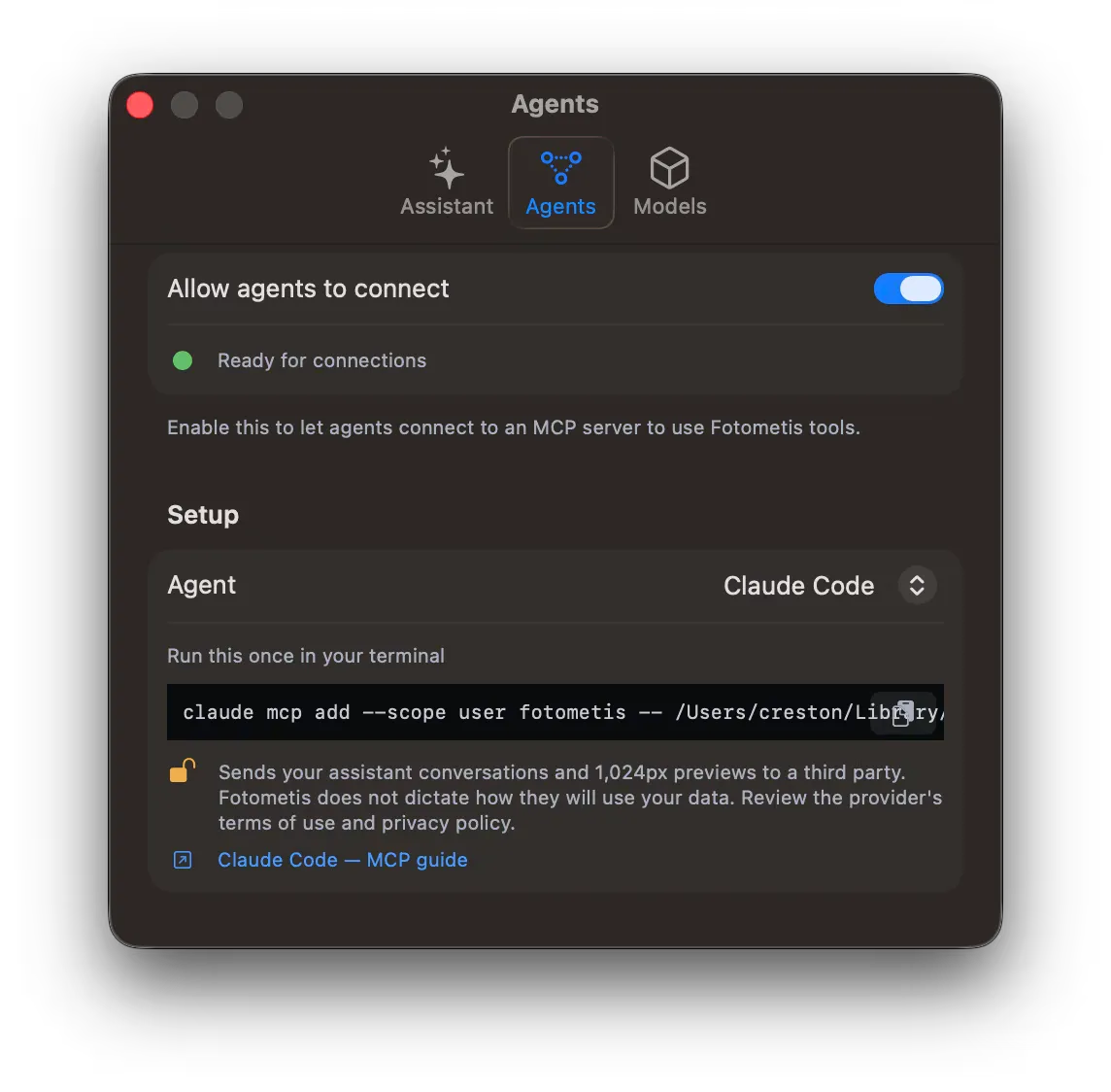
Turn the connection on
Section titled “Turn the connection on”- Open the Fotometis settings.
- Click Agents.
- Turn on Allow agents to connect.
The pane reads “Ready for connections” while the connection is on, with a green dot beside it. Fotometis must run while the agent works. If Fotometis is not open, the agent cannot reach the tools.
Add the server to your agent
Section titled “Add the server to your agent”Setup holds the instructions for each agent.
- Pick your agent in the Agent list.
- Follow the instruction that Fotometis states for that agent.
- Open the agent’s MCP guide from the link below the instruction.
Fotometis gives the command or the settings that the agent needs. The button at the right of the command copies it. For the steps on the agent’s side, read that agent’s MCP page:
Write the request
Section titled “Write the request”Write the request in plain words. For example:
- “tag all photos with a lake”
- “tag photos by their location”
- “reject blurry photos”
- “copy the style from photo A to photos tagged ‘wip’”
An agent with other tools may not know which tools to use. Name Fotometis in the request, for example “tag all photos in Fotometis with a lake”.
Privacy and security
Section titled “Privacy and security”The agent tools work only with the folders you opened in Fotometis. An agent cannot open another folder. Open every folder you want to work in before you start the agent. To limit what an agent can work with, close the folders you want to keep private.
No MCP tool can delete or overwrite a photo, and no tool deletes a saved snapshot. Fotometis keeps the edits, so you can continue in the app after the agent finishes. See Save and restore an edit.
For the choice between the assistant and an agent, see When to use an agent.