
Set up the assistant
The assistant needs a model. Fotometis runs a Metis model on your Mac, or it calls a hosted model. Open the Fotometis settings, then click Assistant.
Run a model on your Mac
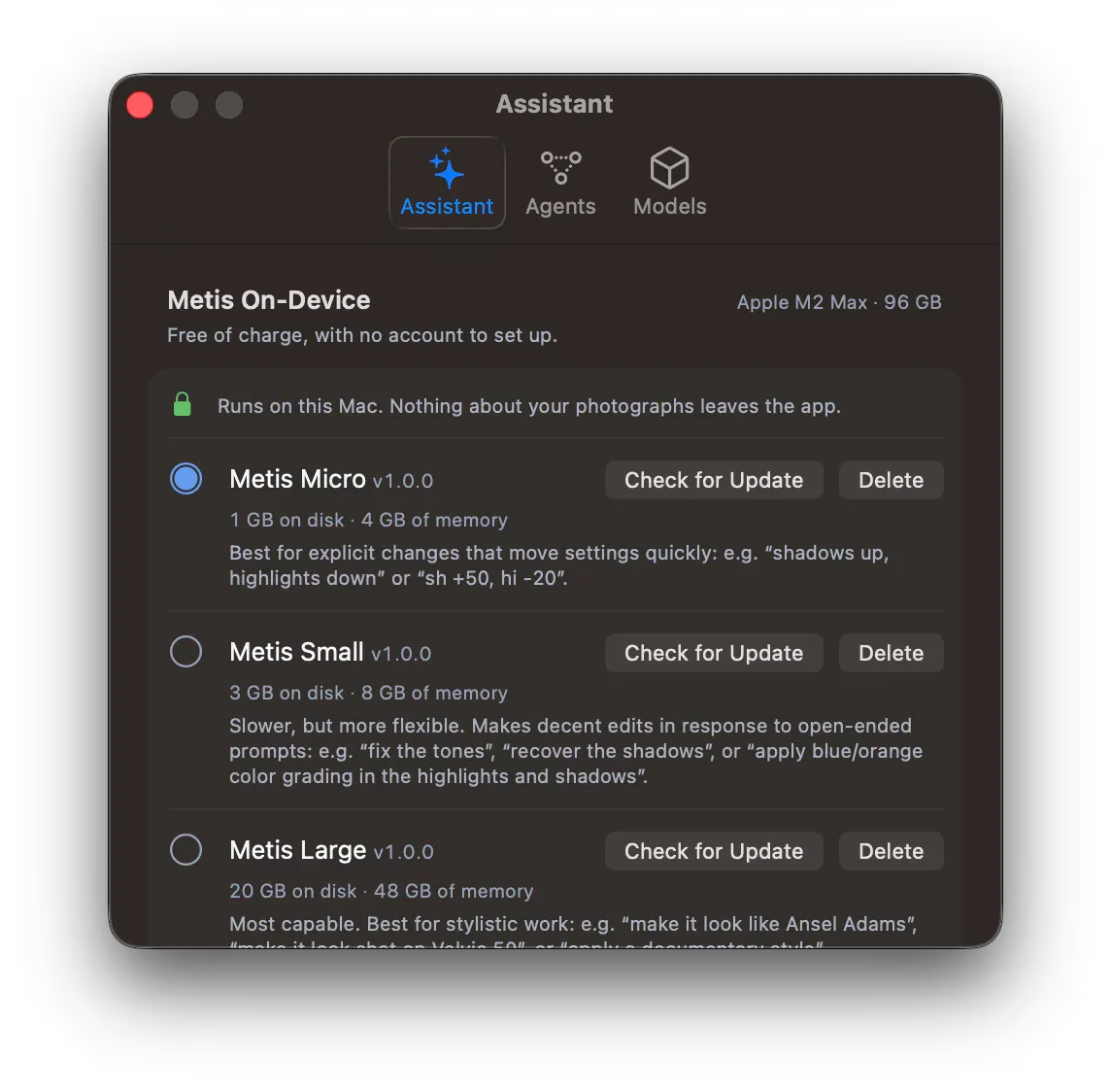
Section titled “Run a model on your Mac”Metis On-Device costs nothing and needs no account. The model runs on the Mac, and nothing about your photos leaves the app.
- Download the models you want to use.
- Select a model to activate it.
Each model gives three actions.
- Click Download to get a model you do not have yet.
- Click Check for Update to get a new version. A new version of a model can make better edits.
- Click Delete to free the disk space.
For the requirements of each model, see Local Metis models. For the choice between a local model, a provider, and an agent, see Which model to use.
Reason before answering
Section titled “Reason before answering”Below the models, Reason before answering gives the model more thinking power. Turn it on for a better result. The answer comes slower. The setting works for all three models.
Turn it on for an open request about style. Turn it off for a short, exact command, where the extra thinking buys nothing. See Prompt the assistant.
Use a hosted model
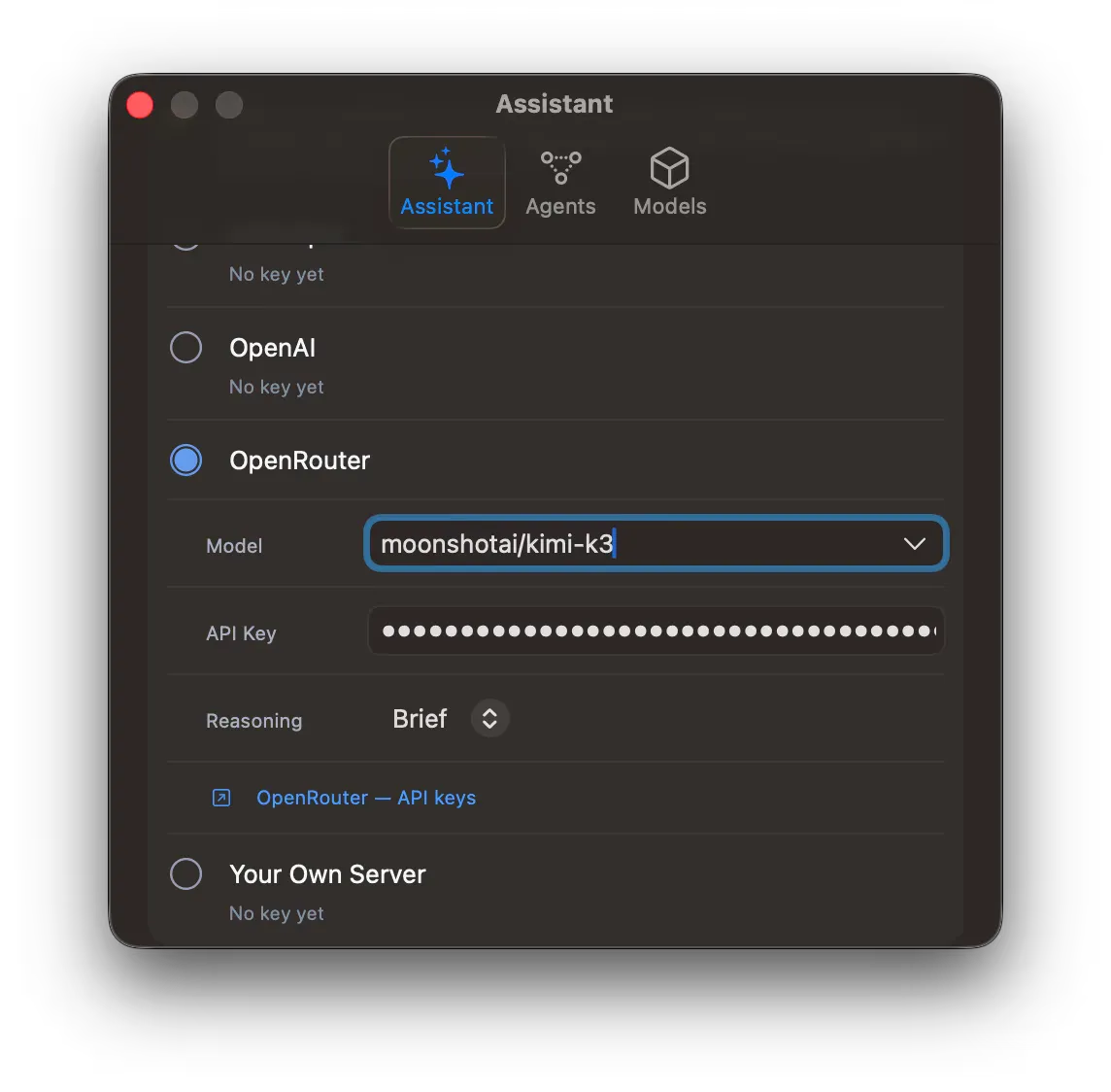
Section titled “Use a hosted model”Below Metis On-Device, Fotometis lists the providers it calls: Anthropic API Key, OpenAI, OpenRouter, and Your Own Server. A provider that has no key reads “No key yet”.
- Click the provider.
- Write the model name in Model, for example “moonshotai/kimi-k3”.
- Paste your API key in API Key.
- Pick the Reasoning level. The levels are Off, Brief, Normal, and Thorough.
The link below the provider settings opens that provider’s API key page. Read the provider’s documentation. It says how to make an account, and what each model can do.
Fotometis stores your keys securely in the macOS Keychain.