
Remove a spot
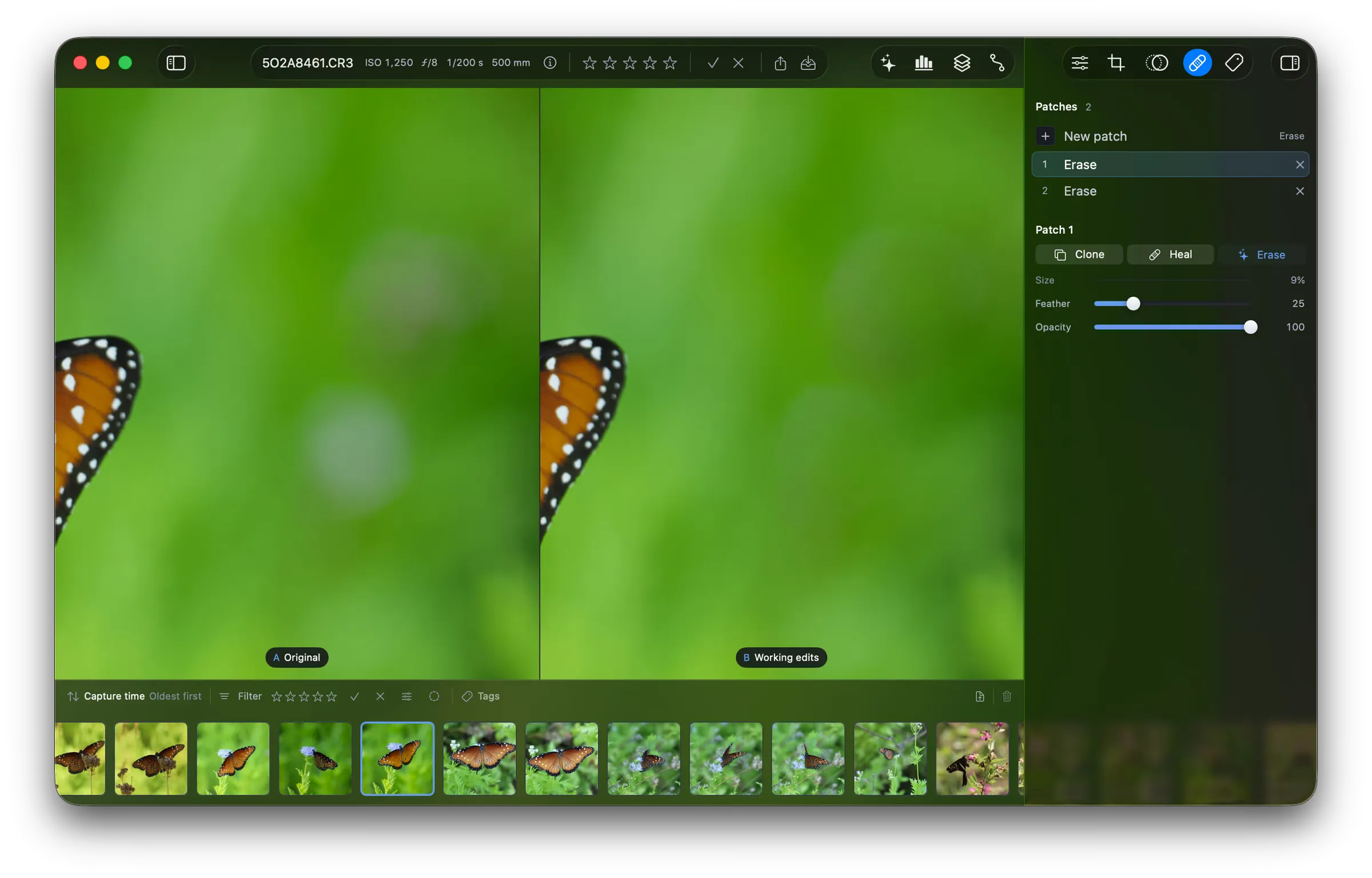
A patch removes a spot from the photo: a dust spot, a blemish, or a distraction in the background. The raw file never changes.
Open the patches
Section titled “Open the patches”Click the fourth tab of the tool sidebar. The tab lists the patches on the photo and counts them.
Pick a mode
Section titled “Pick a mode”A patch has a mode: Clone, Heal, or Erase. Heal suits a dust spot or a blemish. Erase suits a distraction that has a background behind it, and needs no source. Clone copies the source as it is. See The Fotometis window for what each mode does. The New patch row shows the mode the next patch will take.
Paint over the spot
Section titled “Paint over the spot”Set the brush first: Size, Feather, and Opacity. Then click New patch and paint over the spot on the photo. Fotometis replaces the pixels. Clone and Heal copy from a source, and Fotometis finds that source for you.
Adjust or remove a patch
Section titled “Adjust or remove a patch”Click a patch in the list to mark it on the canvas. For Clone and Heal, drag the grip on the source to move it. To remove a patch, click the X on its row.