Organize photos
Fotometis marks a photo with a rating, a flag, and tags. Use the marks to separate the photos you keep from the photos you do not, and to find a photo again later.
Organize photos by folder
Section titled “Organize photos by folder”Fotometis can open folders wherever you keep them. Fotometis does not move them. It applies its own set of organization tools on top of the folder structure they are in.
Fotometis writes the marks to files in the same folder as the photo. See About sidecar files.
Rate and flag a photo
Section titled “Rate and flag a photo”The top bar holds the marks for the photo on the canvas.
- Click a star to rate the photo from 1 to 5, or press 1 to 5.
- To clear the rating, press 0.
- Click the check to accept the photo, or press P.
- Click the cross to reject the photo, or press X.
- To remove the accept mark or the reject mark, press U.
Each thumbnail in the film reel carries its rating, so you see the marks of the whole folder at once.
The same keys work in gallery view. See Work in gallery view.
Add a tag
Section titled “Add a tag”A tag is a word you attach to a photo. One photo can carry more than one tag.
- Open the fifth tab of the tool sidebar. The tab is marked with a tag icon.
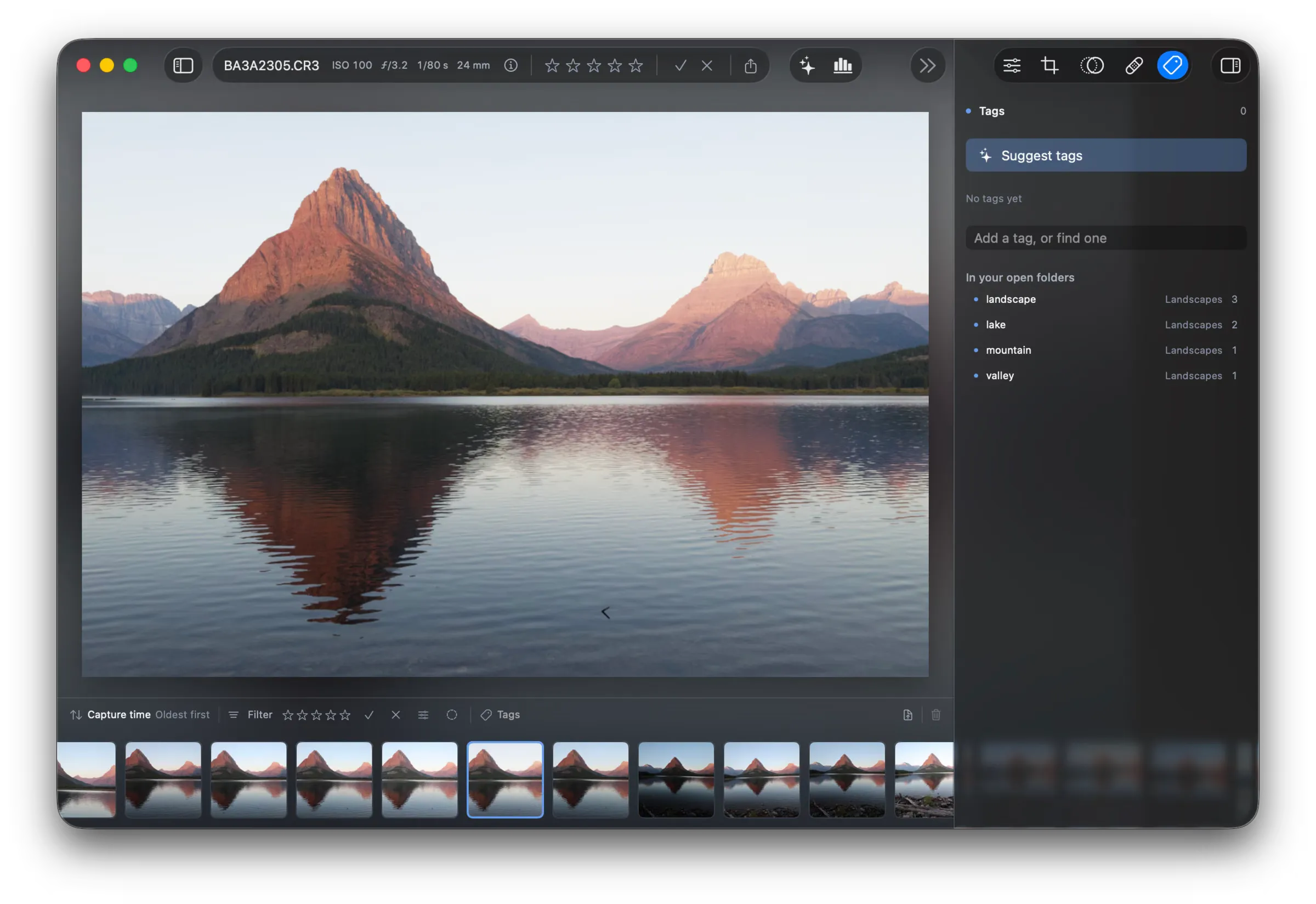
- Click the field that reads Add a tag, or find one.
- Write the tag, then press Return.
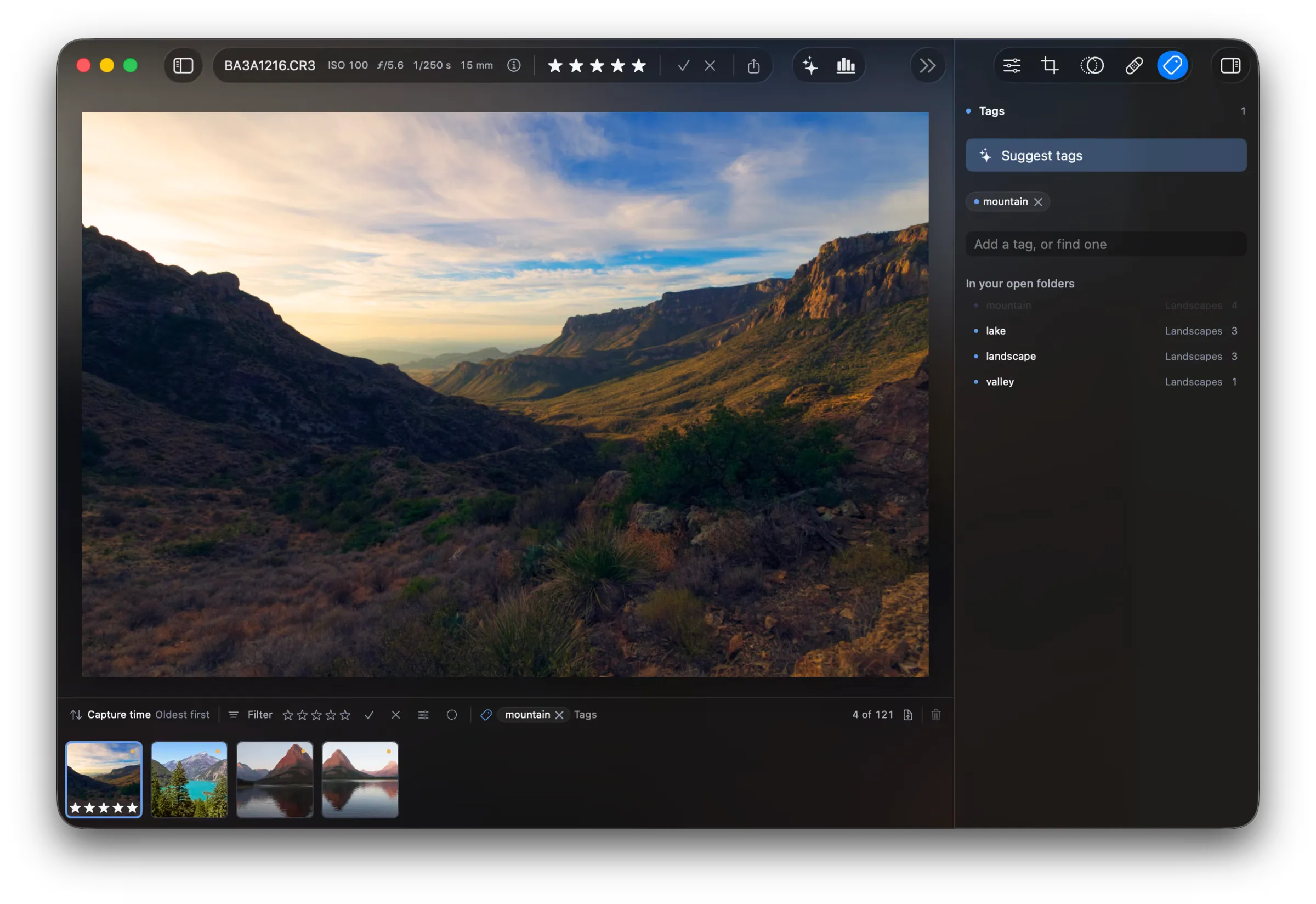
The tag list holds the photo’s tags, and the number beside the Tags heading counts them. The list reads “No tags yet” while the photo has no tag.
To remove a tag from the photo, click the cross on the tag.
To tag many photos in one action, see Tag photos in bulk.
Reuse a tag from an open folder
Section titled “Reuse a tag from an open folder”In your open folders lists every tag that the open folders already use. Each row states the tag, the folder it comes from, and the number of photos that carry it. The tag with the most photos is at the top of the list. Use the list to keep one word for one subject across a shoot.
A tag that the photo already carries is dimmed in the list.
Ask the assistant for tags
Section titled “Ask the assistant for tags”The assistant reads the photo and tags it for you. There are two ways to ask.
- Click Suggest tags at the top of the tag tab.
- Open the assistant pane and write a request, for example “tag this photo”.
The assistant attaches the tags itself. A tag from the assistant is gold, and a tag you wrote is blue.
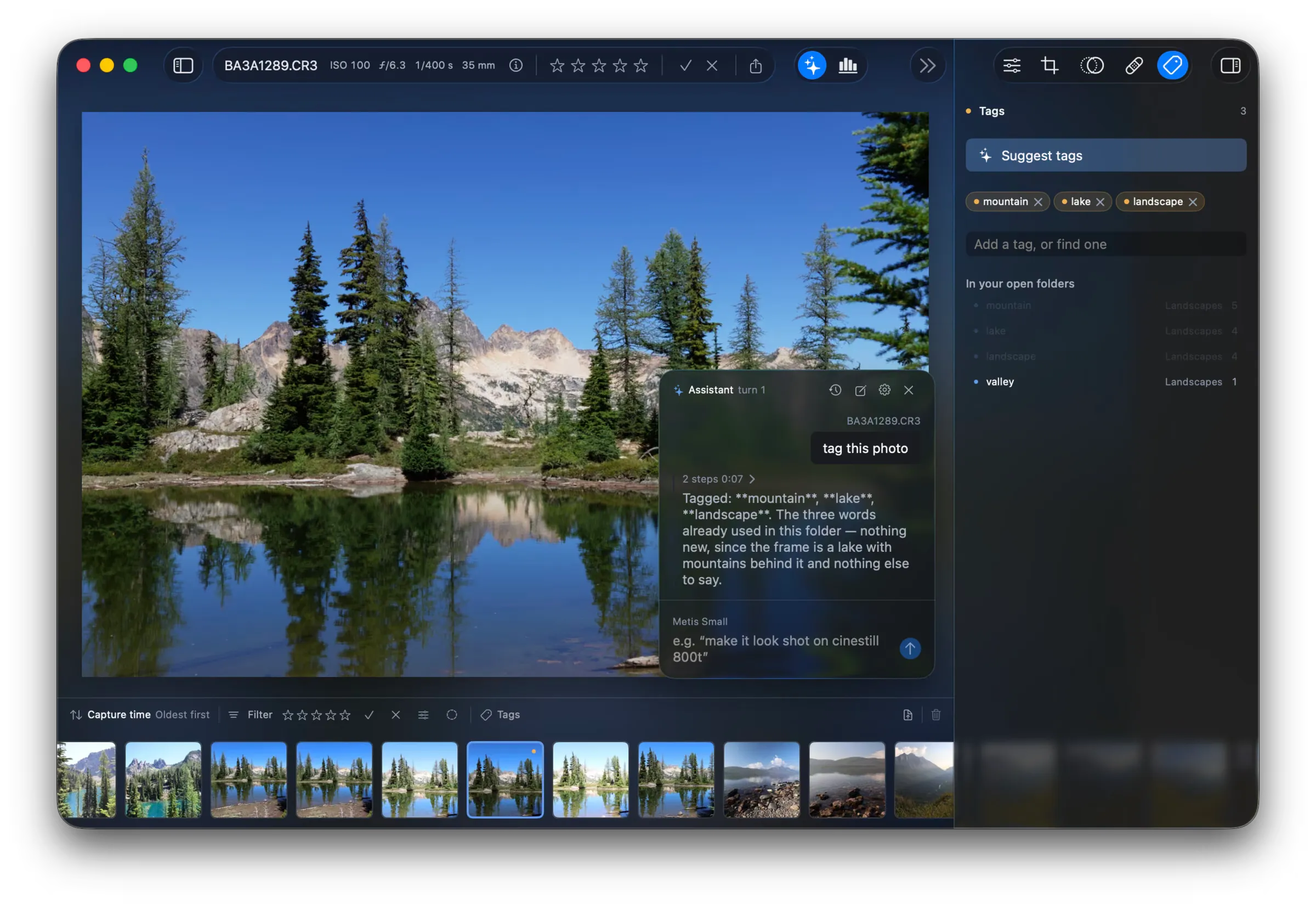
Remove any tag from the assistant that you do not want. Click the cross on the tag.
The assistant needs a model. See Set up the assistant. For more requests, see Prompt the assistant.
Filter the film reel
Section titled “Filter the film reel”The bar above the film reel selects the photos you see. The rest of the folder stays on disk, and no filter changes a photo.
- To change the order, click the sort control and pick a field, for example capture time.
- To see one rating and above, click a star under Filter.
- To see the photos you accepted or the photos you rejected, click the check or the cross.
- To see the photos with edits, click the sliders button. To see the photos without edits, click the circle button.
- To see the photos that carry a tag, click Tags and pick the tag.
A tag filter goes in the bar beside Tags. To clear it, click the cross on the tag.
The right of the bar counts what the filter left, for example “4 of 121”.